Remote MCP Connections
Remote MCP connections let a project connect to an MCP server hosted outside BotDojo. After the connection is saved, BotDojo discovers the server's tools and exposes them as a project Connection.
Create one from Connections -> Add Connection -> Add Custom Connection.
Common fields
Every Remote MCP connection needs:
- Connection Name - The display name shown in BotDojo.
- MCP Server URL - The provider's HTTP MCP endpoint, including the path. This is different from an OAuth install URL, authorization URL, or token URL.
- Auth Type - How BotDojo should authenticate to the server.
Required fields are validated after you leave a field or try to connect. The Connect button stays disabled until required values are present.
OAuth
Remote MCP servers usually use one of two OAuth setup patterns:
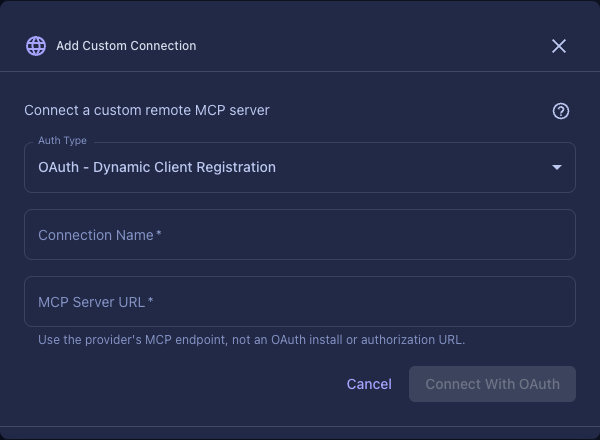
- Dynamic Client Registration - Use this when the provider supports automatic client registration. You only need the MCP Server URL; BotDojo registers itself with the provider during setup.
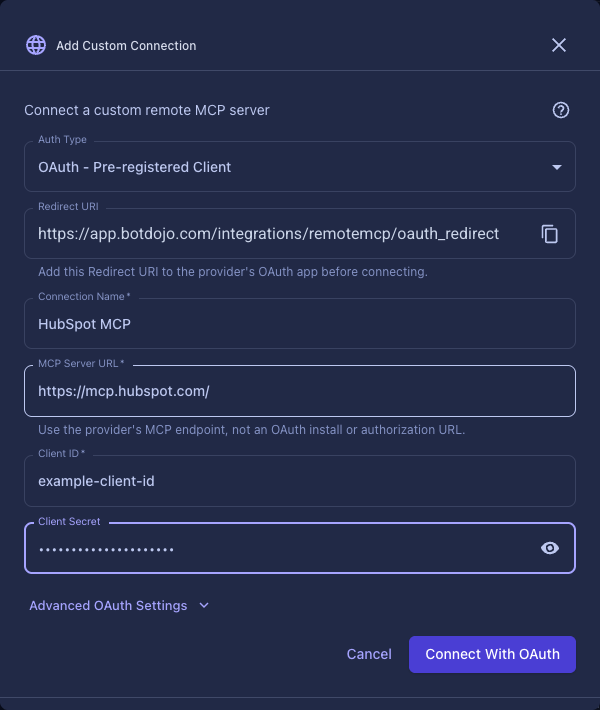
- Pre-registered Client - Use this when the provider asks you to create an MCP or OAuth app first. You copy BotDojo's Redirect URI into the provider app, then paste the provider's Client ID and Client Secret into BotDojo.
The MCP Server URL is published by the provider's MCP docs. Do not paste an OAuth install URL or authorization URL into this field.
Common MCP Server URLs:
| Provider | MCP Server URL | Auth Type |
|---|---|---|
| HubSpot | https://mcp.hubspot.com/ | OAuth - Pre-registered Client |
| Asana | https://mcp.asana.com/v2/mcp | OAuth - Pre-registered Client |
| Linear | https://mcp.linear.app/mcp | OAuth - Dynamic Client Registration |
| Notion | https://mcp.notion.com/mcp | OAuth - Dynamic Client Registration |
| Atlassian | https://mcp.atlassian.com/v1/mcp | OAuth - Dynamic Client Registration |
OAuth - Dynamic Client Registration
Use OAuth - Dynamic Client Registration when the MCP server supports OAuth metadata discovery and Dynamic Client Registration.
BotDojo will:
- Discover OAuth metadata from the MCP server.
- Register BotDojo as an OAuth client with the server.
- Open the provider's OAuth authorization page.
- Exchange the authorization code for access and refresh tokens.
- Save the connection and discover tools.
This mode does not need a Client ID or Client Secret in BotDojo. The server must provide a registration endpoint.
BotDojo still sends its Redirect URI during dynamic registration, but users do not need to copy it manually.
OAuth - Pre-registered Client
Use OAuth - Pre-registered Client when the MCP provider requires you to create an OAuth app in its developer portal first. This is common for SaaS-hosted MCP servers.
Before connecting:
- Create an OAuth or MCP app in the provider's developer portal.
- Copy the Redirect URI shown in BotDojo.
- Add that URI to the provider app's allowed redirect or callback URIs.
- Copy the provider app's Client ID and Client Secret.
Then enter:
- Client ID - Required.
- Client Secret - Required when the selected token endpoint auth method needs it.
- Advanced OAuth Settings - Leave collapsed unless the provider docs require a token endpoint auth method, OAuth scope, authorization endpoint, or token endpoint override.
BotDojo hides manual Test Connection before OAuth completes because OAuth servers do not issue a usable access token until the user authorizes the connection. BotDojo tests the connection after the OAuth callback succeeds.
ZoomInfo example
For ZoomInfo MCP, create an MCP app in the ZoomInfo developer portal, add the Redirect URI shown by BotDojo, then connect with:
- MCP Server URL:
https://mcp.zoominfo.com/mcp - Auth Type:
OAuth - Pre-registered Client - Client ID: the ZoomInfo MCP app client ID
- Client Secret: the ZoomInfo MCP app client secret
- Token Endpoint Auth Method:
Auto
Bearer Token
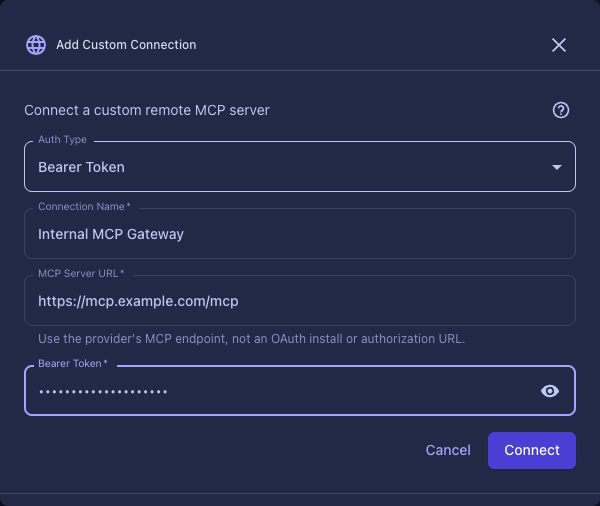
Use Bearer Token when the MCP server expects a static bearer token.
BotDojo sends requests with:
Authorization: Bearer <token>
Manual Test Connection is available for this mode. BotDojo connects to the MCP server and lists tools before saving the connection.
Use this for internal MCP servers, gateways, or vendors that issue a long-lived token instead of using OAuth.
No Authentication
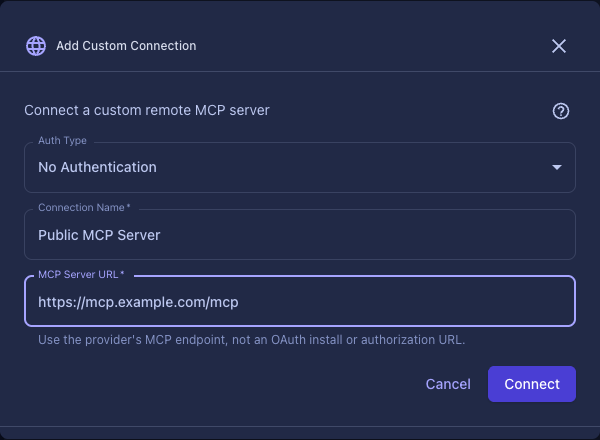
Use No Authentication only when the MCP server is public, already protected by a trusted network boundary, or intentionally unauthenticated.
BotDojo does not send an Authorization header in this mode. Manual Test Connection is available before saving.
Redirect URI
For OAuth - Pre-registered Client, the Remote MCP form shows a copyable Redirect URI. Register exactly that URI with the provider when the provider asks for an allowed redirect, callback, or sign-in URI.
For OAuth - Dynamic Client Registration, BotDojo sends the Redirect URI during registration and does not ask you to copy it manually.
The production URI is usually:
https://app.botdojo.com/integrations/remotemcp/oauth_redirect
Use the value shown in your BotDojo environment if you are on staging, local development, or a custom domain.
Troubleshooting
- No access token available - OAuth has not completed. Start the connection again and finish the provider authorization window.
- Server does not support dynamic client registration - Switch to OAuth - Pre-registered Client and create an OAuth app with the provider.
- Token exchange failed - Verify the Redirect URI, Client ID, Client Secret, token auth method, and scopes match the provider app configuration.
- Bearer token is required - The connection is using Bearer Token but no token was provided.
- Connection test failed - For Bearer Token or No Authentication, BotDojo could not list tools from the MCP server. Verify the server URL, network access, and token.